Showing posts with label Better Computing. Show all posts

Monday, February 09, 2009

How to Remove or Delete AutoPlay Handler from the Options List in Vista and XP

Before you continue to read this article about how to remove autorun virus or autorun options list, we would suggest you to visit our download section in a separate tab(Windows) and continue here.

This article or Windows action requires changing Windows Registry so please be advised to back up you registry before modifying any key.

AutoPlay or AutoRun dialog window will pop up when an removable drive, portable device such as digital camera and media player or CD/DVD disc been inserted into computer or placed into optical drive, with plenty of action choices in a list of options for users to choose to perform on the just connected drive and drive contents. Each item in the AutoPlay list is a handler installed by various applications to show as an option for a particular events or content types such as Pictures, Videos, and Mixed.

Windows by default has several AutoPlay handlers, and other third-party programs, especially media player such as MusicMatch Jukebox and RealPlayer, and image burning software such as Nero will add their own AutoPlay handlers and shortcuts into the list. Over the time, the AutoPlay list can get longer and longer, and some entries can become invalid or orphaned when the program has been uninstalled by the AutoPlay handlers are not removed.

To delete and remove an entry or item from AutoPlay menu, its corresponding handler in the registry has to be deleted. To make the management of AutoPlay entries easier, such as to delete and remove an unwanted or unneeded entry in AutoPlay menu, an AutoPlay cleanup utility is available. Alternatively, you can opt for third party utility tools- Autoplay clean up utility. Visit our download section.

It’s also possible to manually edit the system registry to remove the AutoPlay handlers. The AutoPlay handlers are stored at the following registry location:

HKEY_LOCAL_MACHINE\Software\Microsoft\Windows\CurrentVersion\Explorer\AutoplayHandlers\Handlers\

Above registry key stores handler settings, which is the action to perform when selected on AutoPlay.

HKEY_LOCAL_MACHINE\Software\Microsoft\Windows\CurrentVersion\Explorer\AutoplayHandlers\EventHandlers\

Above registry key stores various event names, which contains associated handlers. Which mean all entries added as the value for the event will be shown as an option when the particular event happens and trigger the AutoPlay menu dialog.

Note that any wrong modification to the registry may cause instability. So if you plan to remove any handlers directly from the registry, backup the key before modifying.

Suggested Readings:

Please, read about Windows utility programs such as Tuneup utility and Vista Manager. Since they are very easy to use programs, you should find them easy to accomplish almost all task to enhance your system.

Portion of this test is taken from PC Tips Box @ http://www.pctipsbox.com/how-to-remove-or-delete-autoplay-handler-from-the-options-list-in-vista-and-xp/

Thursday, January 01, 2009

Performance for your PC- Registry Fix

windows_vista_manager_cleaner_optionsRegistry Editor is a Windows tool intended for advanced users only,  view and change settings in the system registry that contains information about how your computer runs. Windows refers to this information and updates it when you make changes to your computer, such as installing a new program, creating a user profile, or adding new hardware. Registry Editor lets you view registry folders, files, and the settings for each registry file.

Ordinarily, you do not need to make changes to the registry. The registry contains complex system information that is vital to your computer, and an incorrect change to your computer's registry could render your computer inoperable. However, a corrupt registry file might require changes. We strongly recommended that you back up the registry before making any changes and that you only change values in the registry that you understand or have been instructed to change.

Did you know that many PC issues are easily repairable? Don't pay a technician loads of money for an issue that you can easily repair yourself? Performance for your PC depends on most of the times on fixing registry values. You can download ready-made registry hacks from the download link in the menu bar of this geeklog.

tuneUp_registry_cleaner How does this affect me?
Every Microsoft Windows operating system has a registry. Your system registry holds a wealth of information about your computer, which is why we constantly hear from users that after using their PC for a short length of time, it no longer works the way it used to. This is due in part to invalid entries that exist in your system registry, that might exist because of software you are no longer using or software that was not properly removed. By removing these invalid entries, you can significantly increase the performance of your PC.

Why should one fix registry?
The most common PC troubles are found at locations spread throughout your PC.  These programs pinpoint those infected or invalid locations scans for invalid registry entries that might be causing your PC issues. The program will inform you of where the errors exist, and what potential errors they might cause. Most issues or errors related to ActiveX controls, DLL issues, Windows explorer errors, Windows installer issues, Internet Explorer errors, Iexpore and System32 errors, Runtime errors, Outlook and Outlook Express Errors, EXE errors, Svchost errors and a wide variety of other system issues can detected and cured by many third party Windows Utility softwares such as RegistryFix,
 TuneUp Registry Cleaner, Vista Manager Registry Cleaner and many related programs.

Further info: Restore, Fix & Clean Up Your Registry Files and Errors in Windows.  Does your PC crash, is your system running slow or are you receiving regular error messages?  These programs will scan your system registry and hard drive for invalid file and system references for free. These invalid references cause system instability, PC errors, constant crashes, and general system slowdowns. Please, click your choice for detail explanation of the following programs from this geeklog.


This article is intended for registry fix, registry cleaner, windows vista registry cleaner, please see documentation of the respective software before handling registry entries and never forget to back you the whole system registry. 

Wednesday, December 17, 2008

System Configuration utility for Windows Vista Customization II

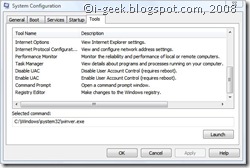
click to zoom: system-configurationsThis is a bit advanced feature of the operating system so be careful when using it.  Start by typing msconfig in the start search box or in the run dialog.

You will see 5 different tabs namely- General, Boot, Services, Startup and Tools. General programs starting with the widows can be checked in the startup tab but we are mainly concerned with tools to quickly access advanced features of the Windows Vista. If you are looking for configuration modes, boot options and startup program options, please read the previous post System Configuration utility for Windows Vista Customization I.

  1. About Windows: Display Windows version information
    C:\Windows\system32\winver.exe
  2. System Information: View advanced information about hardware and software settings
    C:\Windows\System32\msinfo32.exe
  3. Remote Assistance: Receive help from or offer help to a friend over  the Internet
    C:\Windows\System32\msra.exe
  4. System Restore: Restore your computer system to an earlier state
    C:\Windows\System32\rstrui.exe
  5. Computer Management: View and configure system settings and components
    C:\Windows\System32\compmgmt.msc
  6. Event Viewer: View monitoring and troubleshooting messages
    C:\Windows\System32\eventvwr.exe
  7. Programs: Launch, add or remove programs and Windows components
    C:\Windows\System32\appwiz.cpl
  8. Security Center: View and configure the security essentials for your computer
    C:\Windows\System32\wscui.cpl
  9. System Properties: View basic information about your computer system settings
    C:\Windows\System32\control.exe system
  10. Internet Options: View Internet explorer settings
    C:\Windows\System32\inetcpl.cpl
  11. Internet Protocol Configuration: View and configure network address settings
    C:\Windows\System32\cmd.exe /k %windir%\system32\ipconfig.exe /all
  12. Performance Monitor: Monitor the reliability and performance of local or remote computers
    C:\Windows\System32\perfmon.exe /report
  13. Task Manager: View details about programs and processes running on your computer
    C:\Windows\System32\taskmgr.exe
  14. Disable UAC: Disable User Account control, this requires rebooting the system
    C:\Windows\System32\cmd.exe /k %windir%\System32\reg.exe ADD HKLM\SOFTWARE\Microsoft\Windows\CurrentVersion\Policies\System /v EnableLUA /t REG_DWORD /d 0 /f
  15. Enable UAC: Enable User Account Control, this requires rebooting the system
    C:\Windows\System32\cmd.exe /k %windir%\System32\reg.exe ADD HKLM\SOFTWARE\Microsoft\Windows\CurrentVersion\Policies\System /v EnableLUA /t REG_DWORD /d 1 /f
  16. Command Prompt: Open a command prompt window
    C:\Windows\System32\cmd.exe
  17. Registry Editor: Make changes to the Windows registry
    C:\Windows\System32\regedt32.exe

Enabling or disabling the User Account Control is made simple by points 15 and 14. In fact these are shortcuts to Windows Registry Values to enable or disable the UAC feature of Windows Vista. No third party software is required to customize Windows Vista and it's UAC features.

Monday, December 15, 2008

System Configuration utility for Windows Vista Customization I

click to zoom: system-configurations System Configuration is an advanced tool that can help identify problems that might prevent Windows from starting correctly. You can start Windows with common services and startup programs turned off and then turn them back on, one at a time. If a problem does not occur when a service is turned off, but does occur when turned on, then the service could be the cause of the problem.

System Configuration is intended to find and isolate problems, but it is not meant as a startup management program. To permanently remove or turn off programs or services that run at startup, see Uninstall or change a program. This article is taken from Help and Support section of Windows Vista. Please, read the next post System Configuration utility for Windows Vista Customization II, if you are looking for detail help on diagnostic tools and enabling- disabling UAC.

The following table describes the tabs and options that are available in System Configuration:

General : Lists choices for startup configuration modes:

  • Normal startup. Starts Windows in the usual manner. Use this mode to start Windows after you are done using the other two modes to troubleshoot the problem.

  • Diagnostic startup. Starts Windows with basic services and drivers only. This mode can help rule out basic Windows files as the problem.

  • Selective startup. Starts Windows with basic services and drivers and the other services and startup programs that you select.


Boot: Shows configuration options for the operating system and advanced debugging settings, including:

  • Safe boot: Minimal. Boots to the Windows graphical user interface (Windows Explorer) in safe mode running only critical system services. Networking is disabled.

  • Safe boot: Alternate shell. Boots to the Windows Command Prompt in safe mode running only critical system services. Networking and the graphical user interface are disabled.

  • Safe boot: Active Directory repair. Boots to the Windows graphical user interface in safe mode running critical system services and Active Directory.

  • Safe boot: Network. Boots to the Windows graphical user interface in safe mode running only critical system services. Networking is enabled.

  • No GUI boot. Does not display the Windows splash screen when booting.

  • Boot log. Stores all information from the boot process in the file %SystemRoot%Ntbtlog.txt.

  • Base video. Boots to the Windows graphical user interface in minimal VGA mode. This loads standard VGA drivers instead of display drivers specific to the video hardware on the computer.

  • OS boot information. Shows driver names as drivers are being loaded during the boot process.

  • Make all boot settings permanent. Does not track changes made in System Configuration. Options can be changed later using System Configuration, but must be changed manually. When this option is selected, you cannot roll back your changes by selecting Normal startup on the General tab.


Services: Lists all of the services that start when the computer boots, along with their current status (Running or Stopped). Use the Services tab to enable or disable individual services at boot time to troubleshoot which services might be contributing to boot problems.

Select Hide all Microsoft services to show only third-party applications in the services list. Clear the check box for a service to disable it on your next boot. If you have chosen Selective startup on the General tab, you must either choose Normal startup on the General tab or select the service’s check box to start it again at boot time.

Strongly Cautioned : Disabling services that normally run at boot time might cause some programs to malfunction or result in system instability. Do not disable services in this list unless you know they are not essential to your computer’s operation. Selecting Disable all will not disable some secure Microsoft services required for the operating system to start.


Startup: Lists applications that run when the computer boots, along with the name of their publisher, the path to the executable file, and the location of the registry key or shortcut that causes the application to run.

Clear the check box for a startup item to disable it on your next boot. If you have chosen Selective startup on the General tab, you must either choose Normal startup on the General tab or select the startup item’s check box to start it again at boot time.

If you suspect an application has been compromised, examine the Command column to review the path to the executable file.

Strongly Cautioned: Disabling applications that normally run at boot time might result in related applications starting more slowly or not running as expected

Tools: Provides a convenient list of diagnostic tools and other advanced tools that you can run.

Monday, November 03, 2008

How To Easily Remove the MonaRonaDona 'Virus'

The MonaRonaDona Trojan is designed to scam infected users into shelling out $40 for a bogus scanner dubbed Unigray Antivirus. The scammers completed the hoax by positioning several forum posts from alleged victims touting the bogus Unigray Antivirus as a miracle cure for the MonaRonaDona 'virus'. In reality, removal is very simple and requires absolutely no tools, nor parting with any of your hard-earned cash. Just boot into safe mode and follow the directions below. Original Article here

Difficulty: Easy

Time Required: 15 minutes

Here's How To Easily Remove the MonaRonaDona 'Virus':

  1. If you haven't already done so, boot into safe mode.

  2. Search for and delete the following folder, if found:

    C:\Program Files\UniGray Antivirus

    You may also wish to delete the following:

    C:\Program Files\RegistryCleanFix2008

  3. Search the global startup folder for the following file and delete the file if found:

    SRVSPOOL.EXE

    By default, the global startup folder location is
    C:\Documents and Settings\All Users\Start Menu\Programs\Startup

  4. Click Start, click Run, type REGEDIT, and click OK. The Registry Editor will now open.

    Note: To avoid unwanted page wrapping, the following abbreviations are used in the steps below:

    HKCU = HKEY_CURRENT_USER
    HKLM = HKEY_LOCAL_MACHINE

  5. To fix the title bar changes to Internet Explorer and Outlook Express caused by MonaRonaDona, browse to the following keys and delete the values indicated:

    HKCU\Software\Microsoft\Internet Explorer\Main
    Delete value: Window Title

    HKLM\Software\Microsoft\Internet Explorer\Main
    Delete value: Window Title

    HKCU\Software\Microsoft\Outlook Express
    Delete value: WindowTitle

  6. To regain access to Task Manager, which was disabled by MonaRonaDona, browse to the following keys and delete the values indicated:

    HKCU\Software\Microsoft\Windows\CurrentVersion\Policies\System
    Delete value: DisableTaskMgr

    HKLM\Software\Microsoft\Windows\CurrentVersion\Policies\System
    Delete value: DisableTaskMgr

  7. You may also wish to delete the following:

    HKCU\Software\Microsoft\Windows\CurrentVersion\Run
    Delete value: RegistryCleanFixMFC

  8. Close the Registry editor by choosing File | Exit

  9. Reboot the computer normally. The system should now be free of the MonaRonaDona 'virus' and the system changes made by the Trojan should now be reversed.

For begineers: How to Edit the System Registry & Windows System Registry Tutorial by About.com.

Monday, October 27, 2008

How To View Hidden Files and Folders

By default, Windows does not display hidden files and folders. Virus writers often take advantage of this, by dropping hidden files to the system that the casual user can't see. Though the default isn't technically a rootkit, for the inexperienced computer user it can have the same effect. Here's how to change the default settings in Windows so you can view hidden files and folders.
 
Difficulty: Easy
Time Required: 5 minutes

Here's How To View Hidden Files and Folders:

  1. Windows XP, 2000 users: To begin, double-click the My Computer icon on the desktop, then skip to Step 4.
  2. Windows Vista users: Click Start, then Control Panel. Click "Appearance and Personalization" then click the Folder Options icon and skip to Step 5.
  3. Windows ME, NT, 98, and 95 users: To begin, double-click the My Computer icon on the desktop, then skip to Step 6.
  4. Windows 2000 and XP users: Click Tools | Folder Options | View then skip to Step 7.
  5. Windows Vista: Click View then skip to Step 7.
  6. Windows ME/95/98/NT: Click View | Options | View
  7. Under Hidden files and folders, select "Show hidden files and folders"
  8. Now close the dialog boxes you have opened to perform this task. You should now be able to view hidden files and folders on the system. Note that this change may cause the hidden (and legitimate) file 'desktop.ini' to appear on the desktop.

Monday, October 20, 2008

How To Enable Folder Options in Windows Explorer

Malware often drops itself as a hidden file and then disables the Folder Options menu in Windows Explorer so you can't change the settings to view hidden files and folders. If you are unable to access the Tools | Folder Options in Windows Explorer, here's how to modify the registry to regain access to the Folder Options menu.

Difficulty: Easy

Time Required: 5 minutes

Here's How To Enable Folder Options in Windows Explorer:

  1. Click Start
  2. Click Run
  3. Type REGEDIT
  4. Click OK
    The Registry Editor will now open
  5. Browse to the following key:
    HKCU\Software\Microsoft\Windows\CurrentVersion\Policies\Explorer
    Note: HKCU stands for HKEY_CURRENT_USER
  6. In the right pane, look for the value: NoFolderOptions
  7. Right click NoFolderOptions and select Delete. (When prompted with "Are you sure you want to delete this value", select Yes.
  8. Now browse to the following key:
    HKLM\Software\Microsoft\Windows\CurrentVersion\Policies\Explorer
    Note: HKLM stands for HKEY_LOCAL_MACHINE
  9. In the right pane, look for the value: NoFolderOptions
  10. Right click NoFolderOptions and select Delete. (When prompted with "Are you sure you want to delete this value", select Yes.
  11. Close the Registry by choosing File | Exit
  12. You should now be able to access the Folder Options menu. If not, reboot into Safe Mode and repeat the steps outlined above.


For begineers: How to Edit the System Registry & Windows System Registry Tutorial by About.com.

Subscribe to geeklog feed Bookmark and Share

Design by Free blogger template