Showing posts sorted by relevance for query Bluetooth devices. Sort by date Show all posts

Saturday, January 06, 2007

Bluetooth device connections are slow or stop working

Bluetooth device connections are slow or stop working

If your Bluetooth devices are slow or stop working, check the following:

  • Are the devices the correct distance apart? The devices could be at the edge of their range or too close to each other. Move the devices closer together. If that does not work, move the devices farther apart. Also, read the documentation for the device to determine the correct the transmission range.
  • Is one of the devices too busy? For example, other programs might be connecting to the printer, preventing this connection. To reduce the number of connections, set your other devices so that they are not discoverable.
  • Are other devices interfering? The Bluetooth radio frequency is 2.4 gigahertz (GHz). Other devices might be in the same frequency range as your Bluetooth devices. These can include:
    • Cordless telephones that use the 2.4 GHz range
    • Microwave ovens
    • X10 devices, such as those that control automatic lighting and universal remote controls
    • Wireless networks using the 802.11 standard (also called Wi-Fi networks)

      If you think this is the problem, try moving your Bluetooth device farther from the source of interference.

    If your Bluetooth keyboard or mouse does not work, try the following:

    1. Connect a wired keyboard or mouse to your computer.
    2. Open Bluetooth Devices in Control Panel.
    3. Click the Bluetooth device that is not responding, and then click Remove.
    4. Click Add, select the My device is set up and ready to be found check box, and then click Next. If the device is not found, click Search Again.
    5. When the device is found, select it, and then click Next.
    6. If the device is a keyboard, exchange passkeys with the keyboard.
    7. If the device is a mouse, click Don't use a passkey.
    8. Follow the rest of the instructions in the wizard.

Security might have been reset on either device. This is especially common with keyboards and mice. Other devices can have similar problems and might need to be reinstalled.

Sunday, January 04, 2009

Bluetooth wireless technology- maximizing use of Windows Vista's inbuilt Bluetooth features

Bluetooth technology uses radio transmissions to enable devices such as computers, printers, mice, or mobile phones to communicate wirelessly over a short distance. Some of the ways to use Bluetooth technology are:

  • To transfer files between computers or between a computer and another device

  • To print using a Bluetooth enabled wireless printer

  • To use a Bluetooth enabled wireless keyboard or mouse

  • To listen to music using Bluetooth enabled wireless headphones

  • To synchronize a Bluetooth enabled personal digital assistant (PDA) to a computer or another device

  • To create a wireless connection to the Internet with a Bluetooth enabled mobile phone or a modem server

  • To join a Bluetooth personal area network (PAN)

After successful installation of your Bluetooth devices ie Bluetooth mobile phone, Bluetooth printer or any other Bluetooth enabled computer peripherals, make proper arrangements for passkey and encryption, if your Bluetooth device support and you really want that. Encryption features and a passkey can help to secure your data. However, these and other security measures can be compromised or fail and, if that happens, your data could be visible to or accessible by other devices or computers within range. Therefore, Bluetooth wireless technology should not be considered completely secure.

You can also Use a Bluetooth hands-free device or headphones or sync the Bluetooth devices with Windows Media Player or automatically backup your data with your devices. This is very easily done task and should take no time of yours.

For more articles on advantages and usages of Bluetooth devices from this blog, please click here to search.

Friday, April 24, 2009

New Bluetooth 3.0 devices to hit market later this year ‘09

The Bluetooth Special Interest Group (SIG) has recently announced the new Bluetooth 3.0 standard to boost wireless data transfer between devices to 24Mbps from the recent data transfer rate of just 3Mbps for Bluetooth 2.1 standards. In fact, the Bluetooth 3.0 specification is an update from the Bluetooth 2.1 protocol, which was adopted by the group in 2007. bluetooth-3.0-logo

A standards group has approved specifications for a new Bluetooth standard that speeds up wireless data transfers between devices like smart phones and laptops. Bluetooth is commonly used to pair mobile phones with wireless headsets for hands-free talking. It is also used to connect a mobile phone to a laptop to synchronize data or transfer multimedia files without using wires. Over 2 billion devices have shipped with Bluetooth built in, according to Bluetooth SIG report.

The adoption of the standard, and devices based on the Bluetooth 3.0 specification could ship later this year ‘09 or by early next year ‘10 near the holiday season. However, post specification adoption might delay the products on the market. The faster data transfers could lead to its adoption in a number consumer electronics devices beyond just mobile phones.

The Bluetooth SIG has expected Bluetooth 3.0 to make its way into PCs, mobile phones, camcorders, cameras, TVs, digital presenters - devices that consumers use to transfer large data files like those of video, photographs and even entire music libraries.

The standard enables faster data transfers while using less power, giving consumers improved responsiveness and better battery life in mobile devices. It also stabilizes connections between devices, ironing out kinks from earlier standards when connections broke after a device like a cell phone was placed in the pocket. The Bluetooth 3.0 radio is based on Wi-Fi standards, which enables better data throughput while delivers power-saving benefits for mobile devices. It uses short bursts of Wi-Fi to send data, after which the radio is shut off until it is needed again.

More about Bluetooth from the Geeklog.

Saturday, January 17, 2009

Choosing the Best Bluetooth headset gadgets

Wanting to be on hands free device with Bluetooth headset enabled phones- this posts can act as a basic guide to you. Best devices for you (crème de la crème) can be purchased from Amazon. The choice is again yours whether you want a single ear piece or the both.

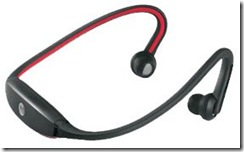
Motorola S9 Bluetooth Active Headphones

Motorola S9 Bluetooth Active Headphones

One of the best designs, user-friendly controls, better sound quality, built-in microphone for making phone calls


Jabra BT620s - Bluetooth Stereo Headset

Jabra BT620s - Bluetooth Stereo Headset

best to listen music and make phone calls,  play music from your laptop directly on Jabra Bluetooth Stereo Headset

Plantronics Voyager 520

Plantronics Voyager 520 

lightweight, comfortable, very good call quality, relatively cheaper

Plantronics Voyager 510 with Multipoint Technology

Plantronics Voyager 510 with Multipoint Technology

Lightweight, versatile headset, wearing comfort, clearer voice transmission, superior sound quality, deskphone adapter

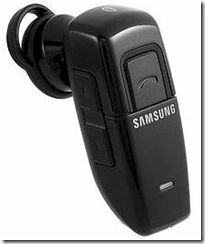
Samsung WEP200 Black

Samsung WEP200 Black

compact ear-but Bluetooth headset, cozy buttons, adaptation needed to use

Aliph Jawbone and Jawbone 2

Aliph Jawbone and Jawbone 2

modern finishing, ear comfortable, noise-cancelling technology that senses vibrations in jaw to verify if the sound is coming from the user, best sound quality, no simpler volume changer

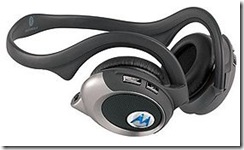
Motorola H 98689 T820 Bluetooth Stereo Headset

Motorola H 98689 T820 Bluetooth Stereo Headset

ultimate choice of audiophiles, music and phone calls seamlessly streamed, A2DP (Advanced Audio Distribution Profile) & AVRCP (Audio Video Remote Control Profile) allow to stream music directly from laptop/PC, most PMPs including MP3,MP4 players

Sony Ericsson Bluetooth HBH-GV435

Sony Ericsson Bluetooth HBH-GV435

Sony's best Bluetooth headset using DSP (Digital Signal Processing) technology, clear sound, almost all sorts of noise canceled out, fast, automatic volume adjustment, auto pairing and redialing

Other worth mentioning Bluetooth headset/stereo devices include:

  • SoundID SM100 Bluetooth headset
  • Plantronics Voyager 855 Bluetooth headset
  • BlueAnt V1
  • Jabra BT8040

Further Links:

Monday, November 13, 2006

Installing Bluetooth mobile phone in Windows XP

To install a Bluetooth mobile phone

If your mobile phone can also communicate with your computer over a Bluetooth wireless network to perform tasks such as contact synchronization or file transfer, then use Bluetooth Devices in Control Panel to install your mobile phone.

  1. Attach or turn on the Bluetooth radio adapter for your Windows XP computer.
  2. Set up your mobile phone so that Windows XP can find it. Setting up your phone includes:
    • Turning it on
    • Making it discoverable (or visible)
    • Giving it a name (optional)

    If you are not sure how to set up your phone to make it discoverable, read the documentation for the phone.

  3. Open Bluetooth Devices in Control Panel.
  4. On the Devices tab, click Add.
  5. Follow the steps in the Add Bluetooth Device Wizard.

Saturday, October 04, 2008

Use your computer as a Bluetooth speakerphone

This might be very exiting to hear at first and yes, it's true, it's always the best. Get you Bluetooth equipped mobile phone (Smart Phone or Windows Mobile or Similar PDAs) and your laptop or desktop with Bluetooth adapter handy and set to boost the handsfree freedom with your device. Your computer also need to be furnished with speakers (woofers would be a great pleasure) and a microphone (Use Boost Microphone feature for enhancement from your system Control Panel).

Now you can use your computer as a speakerphone when using with your Bluetooth equipped mobile phone. I'm addicted to it, you might be.

  • Click Start -> Control Panel -> Hardware and Sound -> Bluetooth Devices. (In Windows Vista OS, you might be prompted for Administrative credentials.)
  • On the Devices tab, click Add to add your mobile phone and then follow the wizard steps.
  • On your Mobile phone, enable Hands-free connection with your computer with enabling Bluetooth ON. (For details on using Bluetooth on your mobile phone, please read the documentation of your cell phone.)
  • Now, click Audio tab where you see your mobile phone in the list.
  • Click Telephony Audio Gateway service and then click Connect. When you are finished with the call, click Disconnect.

Saturday, December 06, 2008

Bluetooth 2.2 Specifications to Be Revealed Next Year

The specifications for the new version of Bluetooth technology- Bluetooth 2.2 will be revealed sometime in mid-2009. This was announced by the consortium of companies that form the technology’s Special Interest Group.

According to the SIG, Bluetooth 2.2 will enable wireless video streaming, printing and other Wi-Fi related tasks. It will also meant that faster speeds than that under v1.1 can be achieved. It is expected that Bluetooth 10x devices will be released first followed by Bluetooth 100x, which if used along with Ultra Wide Broadband radio, may be able to give 480mbps of data transfer speed. Bluetooth 10x is expected to give better performance in Wi-Fi devices and this will be pretty useful especially in portable media players.

The new iPod Touch 2G has a Bluetooth chip embedded in it but it has not yet been activated. Once the final specifications are released, we can expect Apple to release the update to enable Bluetooth 2.2 services.

Thursday, October 02, 2008

Set up a Bluetooth enabled device on your computer and on the mobile device

To set up a Bluetooth enabled device, you need to do three things:

  1. Add a Bluetooth adapter to your computer.

    This is usually done by plugging the adapter into a USB port. (If a Bluetooth adapter is already built in or attached to your computer, ignore this step.)

  2. Set up the device so that your computer can find it.

    To do this, you must:

    • Turn the device on.

    • Make it discoverable.

    To learn how to make a device discoverable, check the information that came with your device or go to the manufacturer’s website.

  3. Install the device.

    To install most devices, such as a mobile phone, keyboard, mouse, or personal digital assistant (PDA), you can use Bluetooth Devices in Control Panel. If you have Bluetooth wireless technology installed on your computer, follow these steps:

Subscribe to geeklog feed Bookmark and Share

Design by Free blogger template